
When you join a Teams meeting, you'll be able to see the video streams of up to nine other people on your screen at the same time.
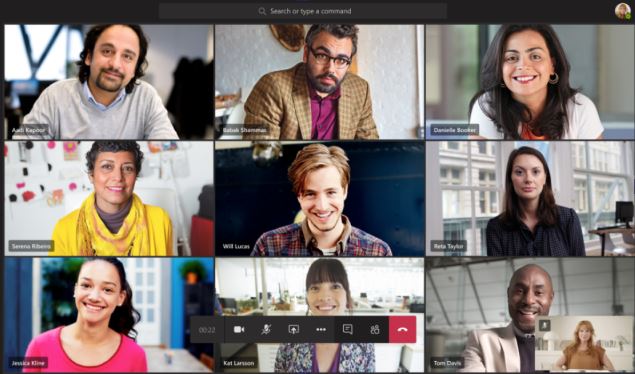
If there are more than nine others in the meeting, we'll prioritize the people who have their video turned on, as well as whoever's speaking. For those who haven't turned on their video, we'll show their profile pic instead (or their initials if they haven't added one).
Note: To provide the best audio and video experience, we might decrease the number of videos you're able to see at once if you're running a little low on bandwidth or computer memory.
Turn your video on or off
Before a meeting
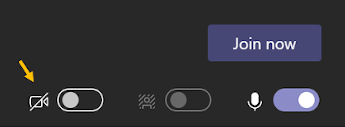
To turn on your video before a meeting, just select Turn camera on  right before you join.
During a meeting
You may want to turn your video on or off over the course of a meeting—if you'd prefer people only see you while you're talking, for example. Go to the meeting controls anytime during the meeting and tap Turn camera on .

Change your video background
If you want to change what appears behind you in your video, you can either blur your background, or replace it entirely with one of the images we've provided. (The option to upload an image of your choice is coming soon!)
When you're setting up your audio and video before a meeting, choose Background effects  (right next to the mic switch). You'll see your background options on the right.
Notes:
-
If you don't see the option to turn on background effects, the feature might not be available on your device yet.
-
Background effects are only available for scheduled meetings.
For more info about customizing your background, see Change your background for a Teams meeting.
Comments
0 comments
Please sign in to leave a comment.