
Overview
The desktop client includes advanced options for audio, video, and screen sharing. These options provide more control of the audio and video feed, as well as troubleshooting support.
Note: These features are intended for advanced technical users. Toggling these options without knowledge of a device's hardware and software configuration can result in a sub-standard experience.
This article covers:
Prerequisites
- Zoom Desktop Client
- Windows: 4.6.0 (13614.1202) or higher
- macOS: 4.6.0 (13610.1201) or higher
Advanced video options
To access these options:
- In the Zoom Desktop Client, click your profile picture then click Settings.
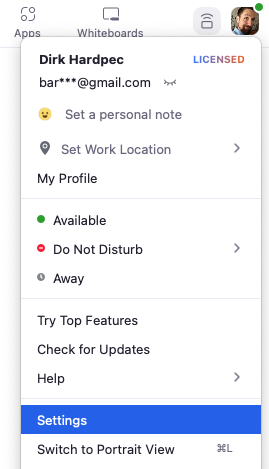
- Click the Video tab.

- Click Advanced.

- The following options will be available, depending on your OS:
Mac OS:
- Enable de-noise: Enables software-based noise removal, to generate a clearer video image that is sent to participants in a meeting.
- Enable hardware acceleration for receiving video: Utilize hardware resources to improve rendering of received video feeds, if your system does not have the required hardware resources, this can make the image worse.
Windows:
- Enable de-noise: Enables software-based noise removal to generate a clearer video image that is sent to participants in a meeting.
- Enable hardware acceleration for video processing: Utilize hardware resources to improve rendering of the overall video feeds. If your system does not have the required hardware resources this can make the image worse.
- Enable hardware acceleration for sending video: Utilize hardware resources to improve rendering of the video feed being sent out. If your system does not have the required hardware resources this can make the image worse.
- Enable hardware acceleration for receiving video: Utilize hardware resources to improve rendering of received video feeds. If your system does not have the required hardware resources this can make the image worse.
- Video Rendering Method: Allows you to choose what graphics API to render the video. By default, this is set to auto.
- Video Rendering Post Processing: Processes the video after it has been captured. By default, this is set to auto.
- Video Capturing Method: Allows you to choose which Multimedia framework to use for video. By default, this is set to auto.
Advanced audio options
To access these options:
- In the Zoom Desktop Client, click your profile picture then click Settings.
- Click the Audio tab.

- Click Advanced.

- The following options will be available:
- Show in-meeting options to “Enable Original Sound” from microphone: Adds an in-meeting button to enable original sound.
- Show in-meeting options to “Enable Audio Log” from audio menu: Adds an option to the in-meeting controls to enable the audio troubleshooting log.
- Suppress Persistent Background Noise: Removes background noise persistently generated by things like appliances, or other devices (i.e. white noise).
- Suppress Intermittent Background Noise: Removes background noise that is not persistent, such as keyboard typing, chair movement, and other non-persistent noises.
- Echo cancellation: Software-based echo cancellation, which removes audio echoes created by the microphone or room acoustics.
Advanced share options
To access these options:
- In the Zoom Desktop Client, click your profile picture then click Settings.
- Click the Share tab.
- Click Advanced.
- The following options will be available:
- Enable hardware acceleration for screen sharing: Disable this option if participants are reporting issues viewing your shared screen.
- Limit your screen share to [ ] frames-per-second: Limits your screen share feed to specific frames per second. You can enable this you don't meet the bandwidth requirements for screen sharing.
- Show green border when I select the shared content: Shows a green border at the edge of your screen when screen sharing a desktop/monitor, making it easier to identify which screen is being shared.
- Screen Capture Mode: These options affect how the screen share is captured, including if Zoom windows will be filtered out of the screen share.
Note: If Show Zoom windows during screen share is enabled, the screen capture mode will override that setting.
Comments
0 comments
Please sign in to leave a comment.